Sandbox Mode
Sandbox Mode allows you to safely test outbound campaigns using without placing real calls.
When a campaign is enabled for API access and Sandbox Mode is turned on, the platform simulates call behavior and outcomes, allowing for full end-to-end testing without affecting production systems or triggering actual calls.
Unlike some platforms, Sandbox Mode in Mico Voice AI is configured at the Campaign level, and uses a separate set of API credentials. This enables more granular control over what’s in test and what’s live, all through the same production environment.
Refer to the steps below to enable Sandbox Mode and begin testing your outbound call integrations.
How to use Sandbox Mode
Sandbox Mode is only available when the Campaign has API access enabled. To use it, you’ll need a separate set of API credentials. Follow these steps to get started with Sandbox Mode:
Step 1: Enable Sandbox Mode for your Campaign
- Open the Campaign that you want to use in Sandbox Mode.
- Click on the
Settingstab. - Toggle
Enable Sandbox modeon.
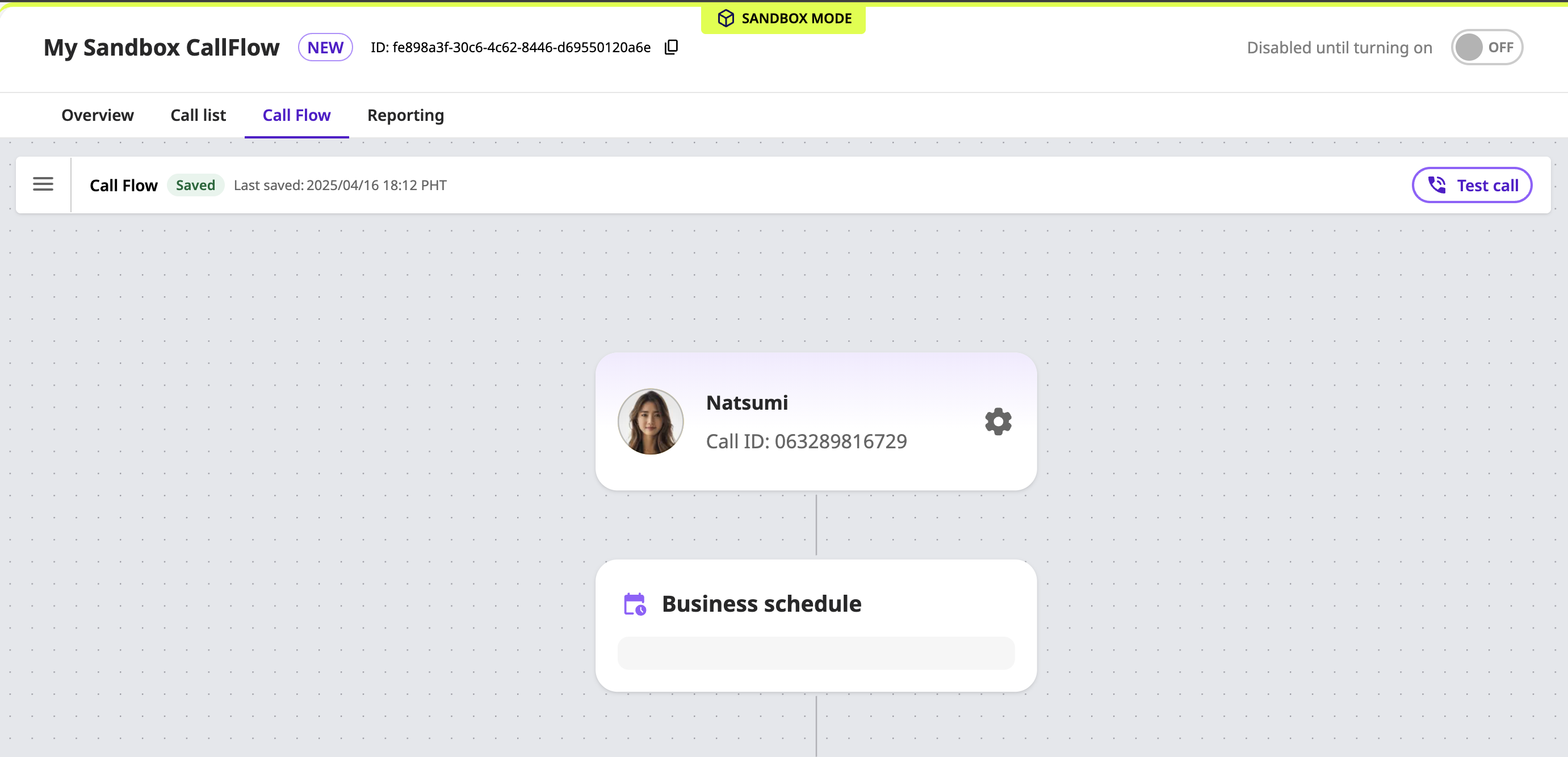
Your campaign will have a yellow highlight on top saying “Sandbox Mode” as seen in the image below. Note: This setting does only applies to the individual user and does not affect how other see the campaign.
Step 2: Generate API credentials for Sandbox Mode
- From the sidebar, click on “Organization” to open Organization page.
- Click on the “Integrations” tab.
- Scroll down to “API Integrations” > "Sandbox API access credential” section.
- Click on “Generate Credential”
- Take note of your Client ID and Client Secret.
Step 3: Start using Sandbox Mode
- Authenticate with the API using your sandbox Client ID and Client Secret.
When using your sandbox Client ID and Client Secret for authentication, you will only be able to interact with sandbox Outbound Calls within Mico Voice AI.
Notes
- Outbound Calls created in Sandbox mode will be deleted weekly every Sunday, 7AM JST.
- What can be tested in the sandbox environment?
- The sandbox environment is intended for testing system integration with the Mico Voice API.
- Specifically, you can verify whether the “call request” and “result retrieval request” work correctly.
- When a call request is successfully sent, a call record with a random status will appear in the sandbox call list.
- You can then test whether the status can be properly retrieved and integrated with your CRM (e.g., Salesforce) using the result retrieval request.
- What cannot be tested in the sandbox environment?
- Features that depend on the actual behavior of a call flow cannot be tested in the sandbox environment.
- Examples include SMS sending, webhook integration, and call transfers.
- These functions rely on the actual execution of the call flow specified via the API and are quality-assured separately from the API itself.
- Since the sandbox only simulates calls, features that require real-world behavior—such as call transfers or SMS delivery—are not supported.
Frequently Asked Questions (FAQ)
When creating a campaign or schedule via API, does Sandbox mode affect its behavior?
Yes, when a campaign is created using Sandbox API credentials, the associated call flow is automatically set to Sandbox mode. This means any calls registered under that campaign will behave as simulated calls unless the Sandbox mode is explicitly turned off in the UI. Furthermore, you can switch the campaign to production mode by toggling Sandbox mode to OFF from the UI. This allows you to use the same campaign for actual production calls. However, a schedule created using Sandbox API credentials is considered a Sandbox schedule and it not accessible when using the non-Sandbox credentials.
If the campaign is in Sandbox mode but the "Enable" toggle is not turned ON in the UI, will simulated calls still occur?
No, even in Sandbox mode, if the campaign is not enabled, no simulated calls will be queued or processed. Enabling the campaign is required to trigger any call behavior, even in test environments.
If I don’t set the calling hours window in the call flow, will simulated calls happen in Sandbox mode?
No, call time settings are respected even in Sandbox mode. If the allowed call time is not set or all time slots are disabled, the system will not process simulated calls either.
If I turn OFF Sandbox mode in the UI for a campaign originally created in Sandbox, will it start making real calls?
Yes, but only outbound calls that are created using production credentials will be executed. Any call data registered using sandbox credentials will not be processed, even if the campaign is later switched to production mode.
What happens if I switch a campaign from production to Sandbox mode in the UI?
In that case, previously registered real calls will no longer be executed. Only calls registered using sandbox credentials will be treated as valid and will simulate call behavior.
If I turn OFF the Sandbox mode in the UI, the call list disappears. Does this mean real calls will start?
No, switching Sandbox mode OFF in the UI does not automatically start real calls. It only changes which set of calls are displayed in the UI. Real calls will only be triggered by API calls made with production credentials.
Do I need to create a new campaign after Sandbox testing is complete?
No, you can continue to use the same campaign. Simply toggle Sandbox mode OFF in the UI to switch to production usage. But only outbound calls that are created using production credentials will be executed.